Microsoft Teams Bot
|
The Microsoft Teams Bot is the ITM Platform app for Teams. It lets you use PMPilot from a personal chat, ask questions in natural language, and receive AI-powered answers based on your ITM Platform data without leaving Teams. |
The bot is connected to PMPilot, so its answers follow the same knowledge, Data Analysis capabilities, and permissions as PMPilot in ITM Platform.
What you can do
Use the Microsoft Teams Bot to:
- Ask questions about your projects, tasks, risks, issues, resources, budgets, and portfolio.
- Get answers from your live ITM Platform data directly in Teams.
- Ask follow-up questions without repeating all the previous context.
- Receive the same type of answers you would get from PMPilot in ITM Platform.
- Send feedback about an answer, or send the conversation to support when you need help.
Typical questions include:
- Which projects are over budget?
- What tasks assigned to me are late?
- Show the main risks for Project Alpha.
- Which resources are overallocated this month?
- Summarize the status of my active portfolio.
How to install and start
- Open the ITM Platform listing in Microsoft Marketplace.
- Select Get it now and add the app to Microsoft Teams.
- Open a personal chat with ITM Platform in Teams.
- Send a message to start using the bot.
The app requires an active ITM Platform account. The bot identifies you by your Teams email and connects you to the matching ITM Platform user. If your email is not linked to an ITM Platform account, ask your organization's ITM Platform administrator to add it.
If your organization controls which apps can be used in Teams, your Teams administrator may need to approve the ITM Platform app before users can install it.
Company selection
If your Teams email belongs to more than one ITM Platform company, the bot will ask you to choose which company you want to use. Reply with the number shown next to the company name.
The selection is remembered for the current conversation. To change to another ITM Platform company, type:
/switch
After switching, send another message and choose the company you want to use.
Conversation controls
| Control | What it does |
|---|---|
/clear |
Starts a fresh conversation while keeping the selected company. |
/switch |
Clears the selected company so you can choose another ITM Platform account. |
| New conversation button | Starts a fresh conversation from the button shown below an answer. |
| Good answer / Bad answer | Sends feedback about the latest answer. |
| Send to support | Sends the conversation to ITM Platform support for review. |
The bot also clears the conversation automatically after a period of inactivity, so very old context is not reused by mistake.
Example
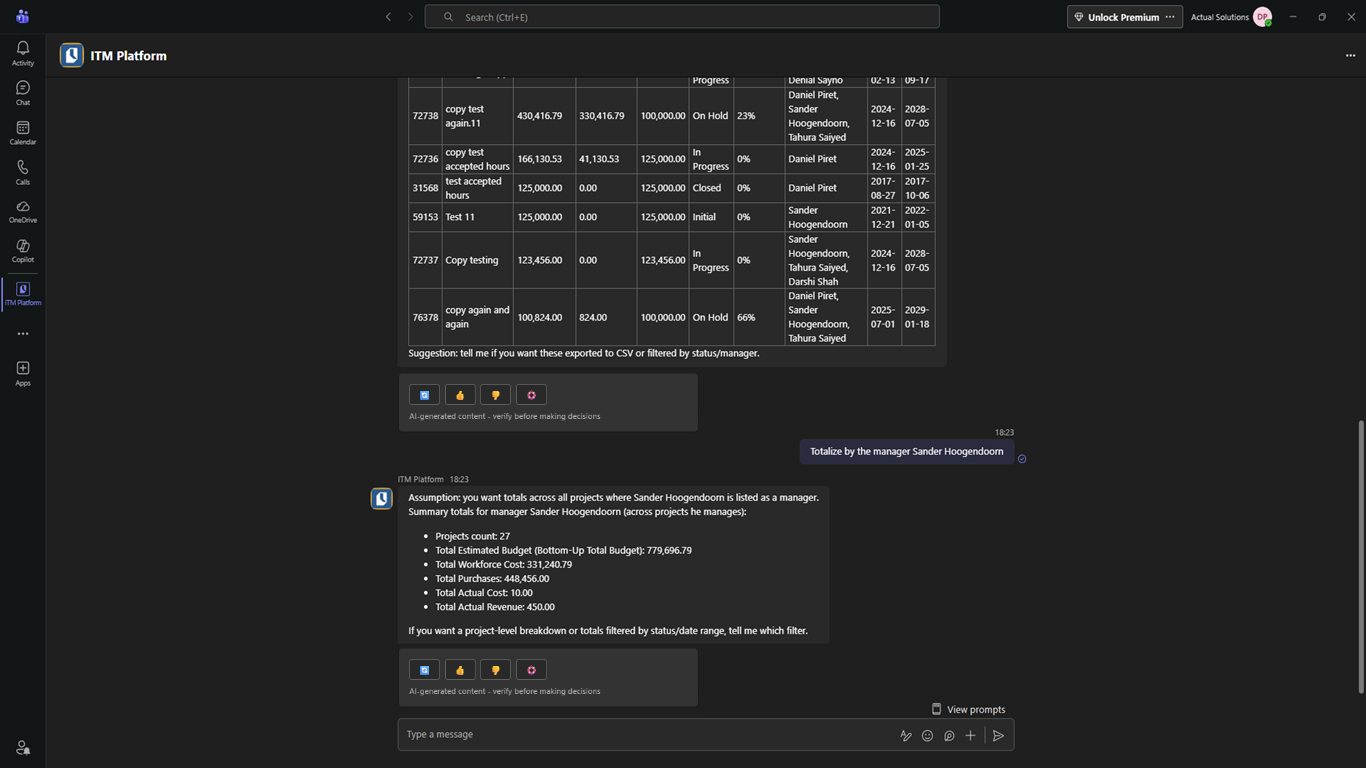
In this example, the user asks a follow-up question and the bot continues from the previous answer.
Data access and AI-generated answers
The Microsoft Teams Bot uses the same PMPilot services as the chat panel in ITM Platform. Questions that require live project and portfolio data use PMPilot Data Analysis and the DataMart.
Access depends on your ITM Platform role and permissions. For example, users who can only access their managed projects in ITM Platform will only receive answers based on that permitted data.
All answers are AI-generated and should be reviewed before making decisions.
FAQ
Are the responses the same as PMPilot? Yes. The Teams bot is connected to PMPilot, so the responses follow the same product knowledge, data access, and account configuration as PMPilot.
Do I need to log in again from Teams? No. The bot uses your Teams email to find your ITM Platform account. Your email must be registered in ITM Platform.
Can the bot access data I cannot see in ITM Platform? No. The bot follows the same access controls as PMPilot and the DataMart.
What should I do if I belong to multiple ITM Platform companies?
Choose the company from the numbered list. Use /switch when you want to change to another company.
Does /clear change my selected company?
No. /clear only starts a fresh conversation. Use /switch to change the selected company.