Resource analysis
The Analysis tab of the Resources section compares estimated effort, actual time and capacity for people across projects and services. It answers questions such as who has more work than capacity in the coming weeks, how actual time compares with estimates on a set of projects, or how much effort a group of projects has needed in a quarter.
To open it, go to MANAGEMENT > Resources and click Analysis.
From this view you can:
- Analyze a run of up to 31 days, 12 weeks, 12 months or 8 quarters, or totals for any date range.
- Organize the rows by people, by components (projects and services) or by tasks, at one, two or three levels.
- Filter by people, org unit, component type, status, program or any other project field.
- Color the values that are over or under their reference.
- Save the settings as your view and export the result to Excel.
The Analysis tab is read-only. Access, the projects-you-manage scope, colors and export are shared with the Weekly tab and described in Resources section.
The Analysis tab at a glance
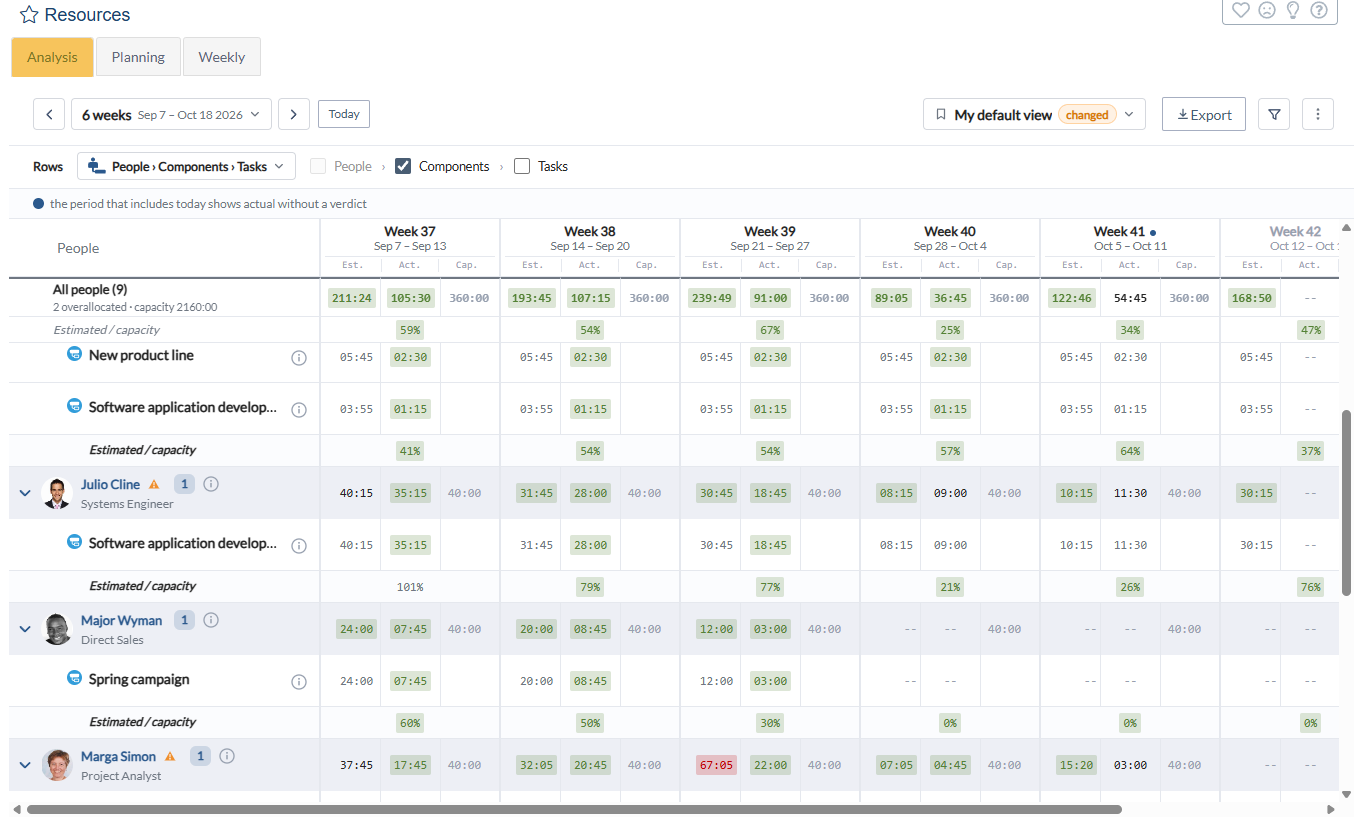
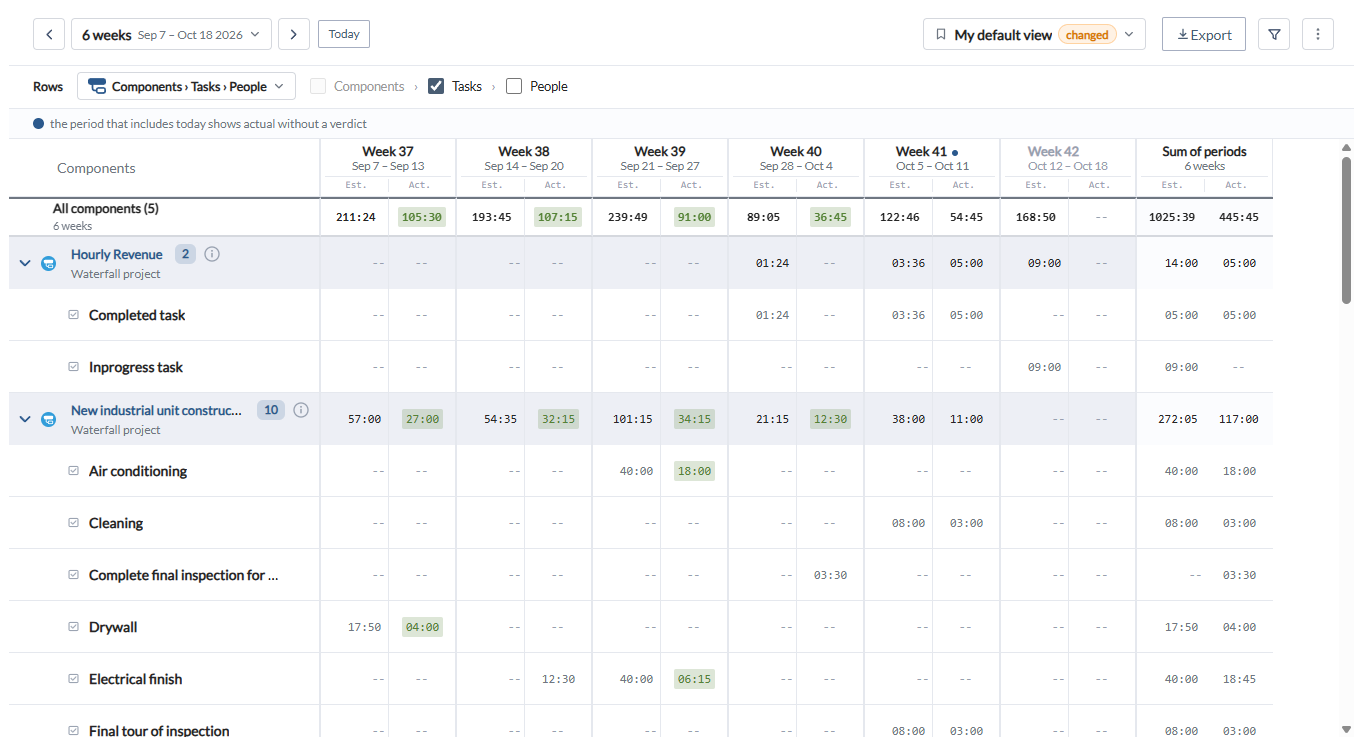
- Header: the previous and next arrows, the period label, Today, and on the right your saved view, Export, the filter icon and the three-dot menu.
- Rows: the pivot, which sets the order of the levels, and one checkbox per level.
- Columns: one group per period. In the people pivot each group shows Est., Act. and Cap.; in the component pivots, Est. and Act. A Sum of periods group closes the run.
- Summary: the first row adds up everything in view, All people or All components. In the people pivot it also shows the number of overallocated people and the total capacity.
- Bands: each first-level row is a band. A person has a photo or initials, position and, when needed, the overallocation triangle. A component has its type icon, its name as a link and its type. The number next to the name counts the rows below it.
The period that includes today is marked with a blue dot, and future periods are shown faded.
Choosing the periods
Click the period label to choose the run.
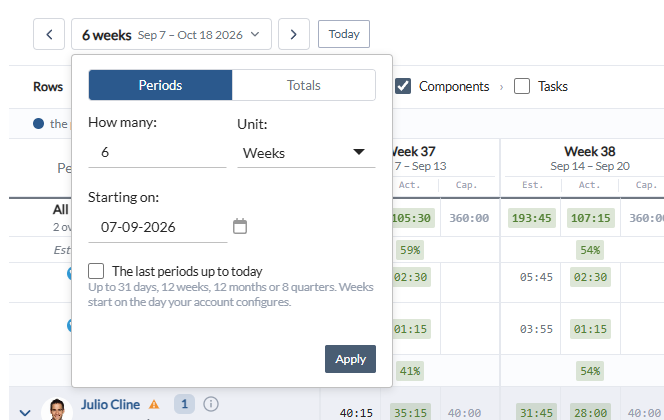
- Leave Periods selected.
- In How many, enter the number of periods, and in Unit choose Days, Weeks, Months or Quarters. The maximum is 31 days, 12 weeks, 12 months or 8 quarters.
- In Starting on, choose the first day, or select The last periods up to today to analyze the periods that end with the current one. A run of last periods moves forward on its own as time passes, which is useful in a saved view.
- Click Apply.
Weeks start on the first day of the week configured in your account. The arrows in the header move the run back or forward by its own length, and Today starts the same run from the current period.
Totals for a date range
To see whole tasks without splitting them into periods, choose Totals in the period window.
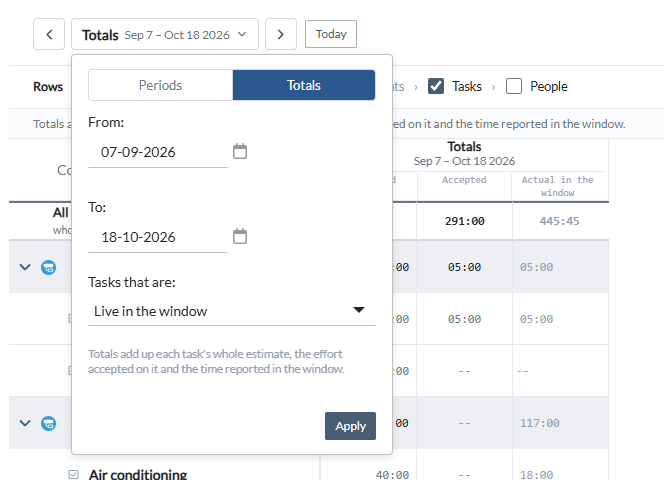
- Enter From and To.
- In Tasks that are, choose Live in the window to include every task active at some point between the two dates, or Strictly inside the window to include only tasks that start and end between them.
- Click Apply.
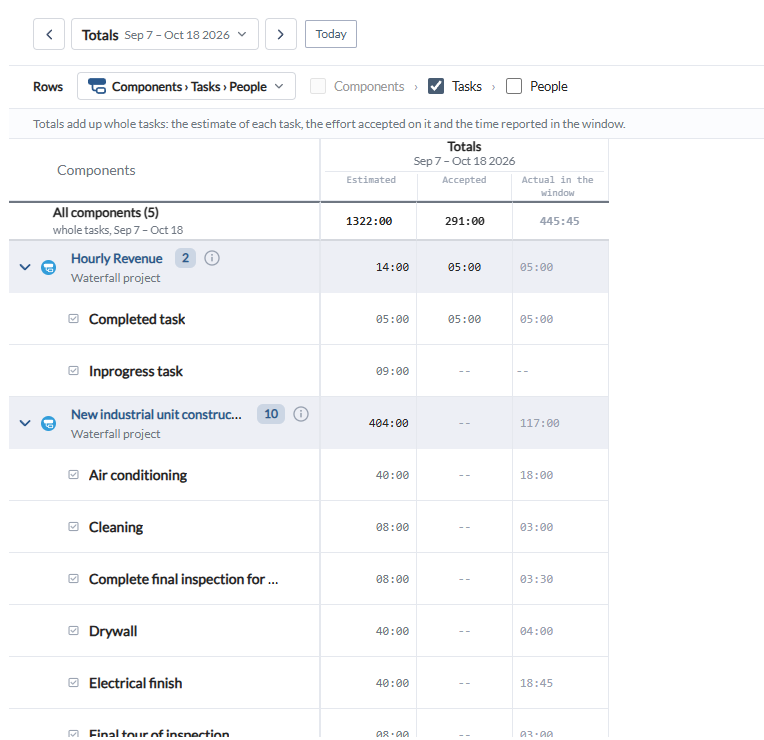
In totals mode each row shows three figures:
- Estimated: the whole estimate of each task, including the part that falls outside the dates.
- Accepted: the effort accepted on each task. See Effort management.
- Actual in the window: the time reported between the two dates.
Totals mode has no capacity, no ratio rows and no Sum of periods.
Organizing the rows
Click the pivot next to Rows to choose the order of the levels.
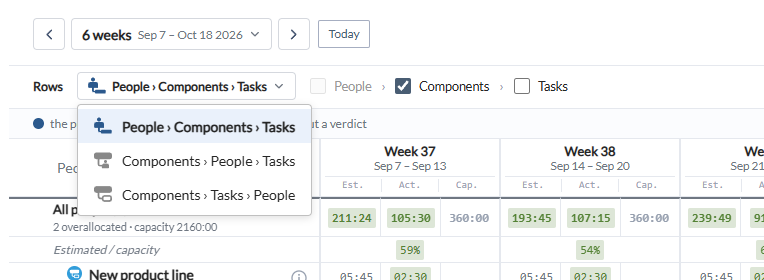
- People › Components › Tasks, the default: each person, their projects and services, and the tasks. This is the only pivot with capacity, so use it to check workload against availability.
- Components › People › Tasks: each project or service, the people who work on it, and their tasks.
- Components › Tasks › People: each project or service, its tasks, and the people assigned to each task.
The checkboxes after the pivot choose how many levels to show. The first level is always shown. Clearing the second level also clears the third, and selecting the third also selects the second. Use Expand all and Collapse all in the three-dot menu, or the arrow of a band, to open and close the rows.
Filtering
Click the filter icon to open the filters. The icon shows how many filters are active.
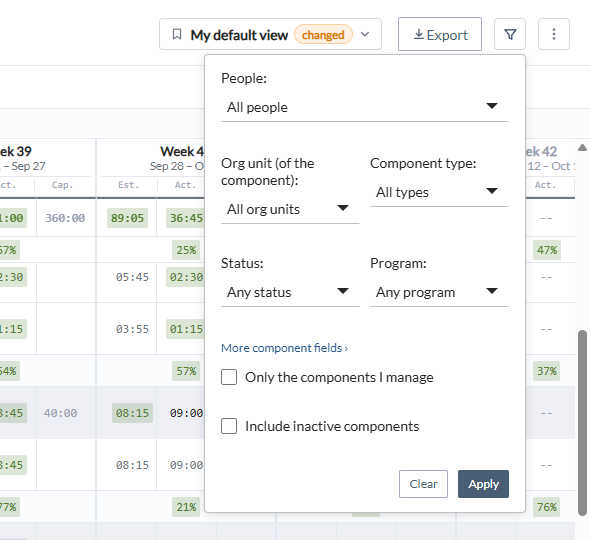
- People: one or more people. Type to search.
- Org unit (of the component), Component type, Status and Program: the most common component fields.
- More component fields: opens the full filter builder with every project field.
- Only the components I manage: limits the analysis to the projects and services you manage; the work of their teams elsewhere appears as Other work. Project Managers always see this scope. See Projects you manage and Other work.
- Include inactive components: also counts projects and services that are not active, which are excluded by default.
Click Apply to run the analysis with the filters, or Clear to remove them. When more than 500 people match, the analysis lists the first 500 and asks you to narrow the filters.
Thresholds and view options
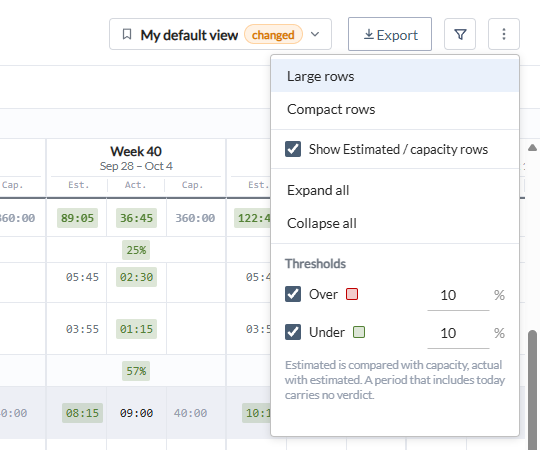
The three-dot menu holds:
- Large rows and Compact rows.
- Show Estimated / capacity rows, to show or hide the ratio row under each person and in the summary.
- Expand all and Collapse all.
- Thresholds: Over and Under, 10% each by default. Estimated is compared with capacity and actual with estimated. A period that includes today carries no verdict, and the Sum of periods carries no verdict on actual time.
An orange triangle next to a person means that their estimated effort is above their capacity in at least one period of the view.
Person and component details
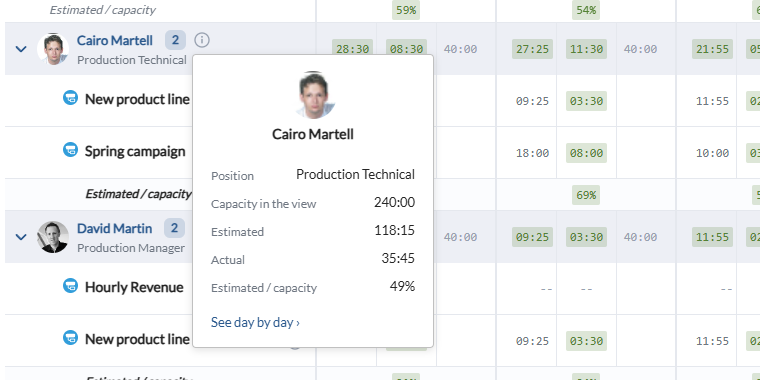
Click the information icon next to a person to see their position, capacity in the view, estimated, actual and Estimated / capacity. See day by day opens the Weekly tab, where you can open the person's day-by-day chart. See Weekly workload.
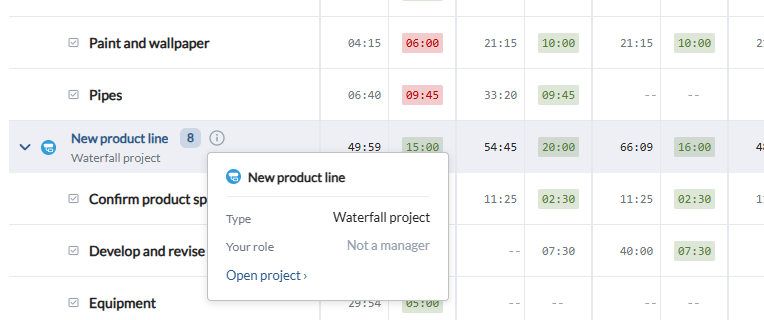
Click the information icon next to a project or service to see its type and your role, with Open project or Open service, and Open its team when you manage it. See Project team management.
Saving your view
The view selector in the header shows the view you are using, Standard view or My default view. When you change the periods, filters, pivot, levels or thresholds, a changed label appears next to it. Nothing is saved until you open the selector and click Save; Discard changes returns to the saved settings.
The saved view stores the periods (including a run of the last periods up to today), the filters, the pivot, the levels and the thresholds, and it follows you to any browser. Unsaved changes, row size, the Estimated / capacity rows and collapsed rows are remembered in this browser only.
Exporting the analysis
Click Export to download the analysis as an Excel file. It has the rows of the pivot with their levels, one column group per period or the three totals columns, the sums and ratios, the summary on top, and a Filters sheet. See Exporting to Excel.
Examples
Who is overallocated in the coming weeks
- In the period window choose Periods, 8 Weeks, starting today. The run starts on the first day of the current week.
- In Rows, choose People › Components › Tasks and select only the first two levels.
- Look for people with the orange triangle and red Estimated / capacity values, then open their project's team to rebalance the work.
Estimated against actual on a client's projects
- Choose Totals, with From and To covering the year, and Live in the window.
- In the filters, use More component fields to select the client.
- In Rows, choose Components › Tasks › People.
- Compare Estimated with Actual in the window for each task to see where the estimates were short.
Monthly effort of a program
- Choose Periods, 6 Months, with The last periods up to today.
- In the filters, choose the Program.
- In Rows, choose Components › People › Tasks with one level, then Save the view to open it this way next time.
FAQ
Why do the periods have no Cap. column? Capacity belongs to people, so it is shown only in the People › Components › Tasks pivot.
Why is the period that includes today not colored for actual time? The period is still running, so its actual time is incomplete. Analysis shows the figure without a verdict.
Why do totals show more estimated hours than the sum of the periods? Totals add up the whole estimate of each task, including the part outside the dates. Periods count only the effort that falls inside each period.
Why do I see Other work? You are looking at the components you manage, either because you selected Only the components I manage or because your license is Project Manager. Other work is the team's estimated effort elsewhere, without names.
Why does another browser show different settings? Unsaved changes, marked changed, are kept only in the browser where you made them. Open the view selector and click Save to store them in your view.
Do Power BI reports and API integrations use the same data? Yes. They read the same analysis, and the user whose credentials they use needs access to the Resources section.