Waterfall Project Tracking
ITM Platform gives you the tools to report and monitor the progress of tasks in a project. Task progress will be used to compute the calculated progress of summary tasks and the project’s total progress.
Before continuing, let’s define two similar but not equal concepts:
- Progress of a task, a summary, or a project (also referred to as percentage completed) is a percentage that represents the actual progress ratio. Thus, 0% will indicate that it has not been started, and, in general, 100% indicates it has been completed. You can mark tasks and projects as completed without reaching 100%.
- Progress report of tasks and projects offers additional information. It includes an assessment (configurable values list), a description, the percentage completed (progress), and a progress report date.
The progress value represents its real progress and is generally reported by the task manager or the project manager.
The progress of the task is not calculated by the actual consumption of estimated hours. The hours invested in the task do not necessarily represent the actual progress of the task.
Who can report the progress of a task?
Usually, it is the task manager or the project manager, although users with Full Access permission can make changes without necessarily having to be assigned to the project.
The task manager is chosen when the task is assigned in the project's Team tab, by selecting the Manager task role. See Project team management.
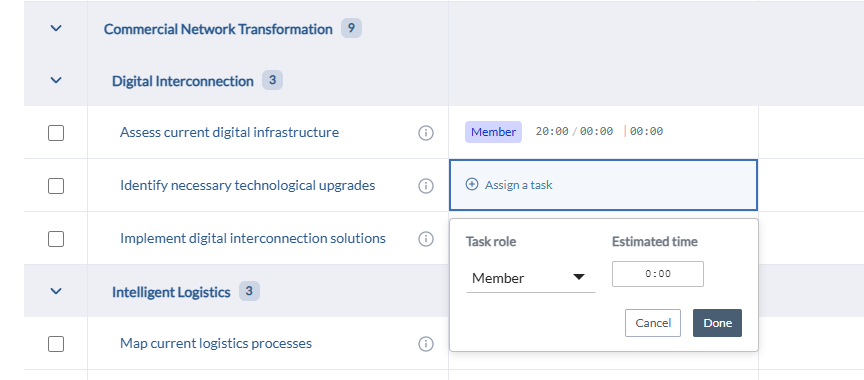
Where can you report progress on tasks?
There are three places from which a user can report progress: Timesheet, Task Tracking section, and the Gantt.
It is possible to track in an automated way from another application using the API .
Tracking from the timesheet
Task managers will see a “progress” icon on the timesheet that will allow them to create a progress report.
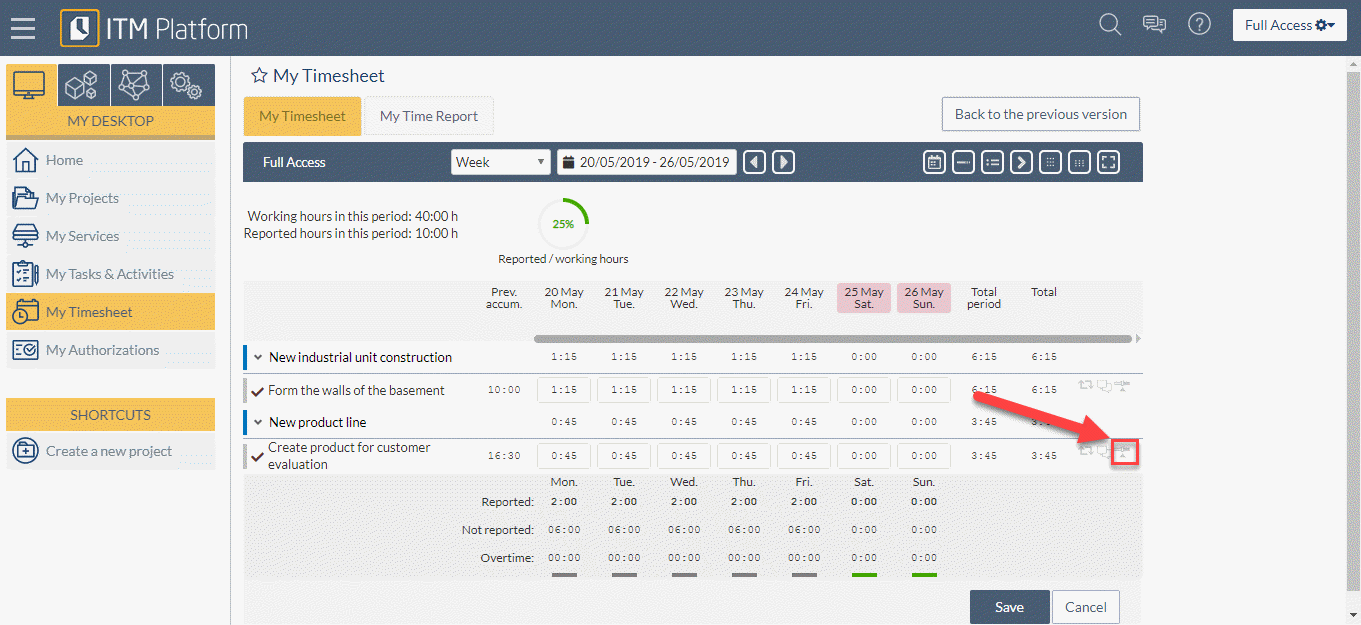
Tracking from the “Task” tab
The tasks have several sections of information, one of them being “Progress”, where you will see a tracking history as well as the possibility of adding a new one.
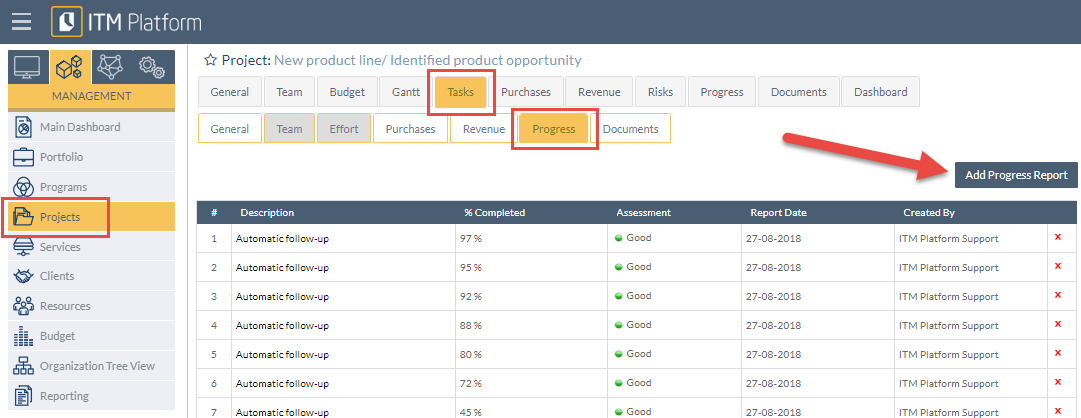
Progress report by changing the task status
When you move a task to a completed type of status, you can configure the system so that progress is increased to 100%, generating automatic progress report.
To configure this behavior in waterfall projects (Gantt), access the SETTINGS menu > PARAMETERS > Task Parameters > Task Status. When selecting “Status Type”, select the “Automatically update to 100%” checkbox
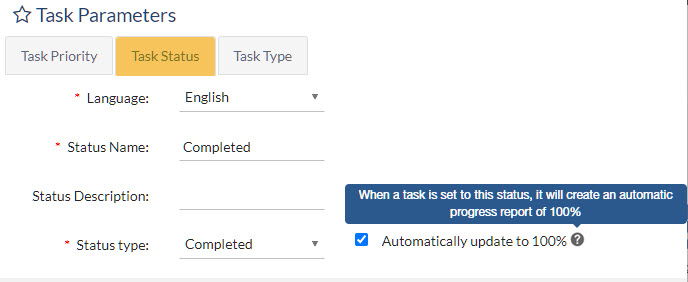
Thereafter, the tasks you mark as completed will be assigned 100% progress.
Note that if you roll back the status to a “Pending” or “In Progress” type, you will need to manually assign the new progress, if desired.
Task status changes with progress
The reverse also happens, and it needs no configuration: on waterfall projects the task status follows the progress you report, wherever you report it (the task’s Progress section, the Gantt chart, or the API).
- Reporting any progress above 0% on a “Pending” task moves it to an “In Progress” status.
- Reporting 100% moves it to a “Completed” status.
- Lowering a completed task below 100% returns it to “In Progress”, and taking it back to 0% returns it to “Pending”.
When your organization has more than one status of a type, the default status of that type is used, and otherwise the oldest one. Tasks in “Backlog” or “Archive” keep their status unless they reach 100%, a status you set by hand stays until the next progress report, and agile board columns never change this way.
Progress Report from the Gantt chart
In the Gantt chart, there is a “% Completed” column that can be edited by the project manager.
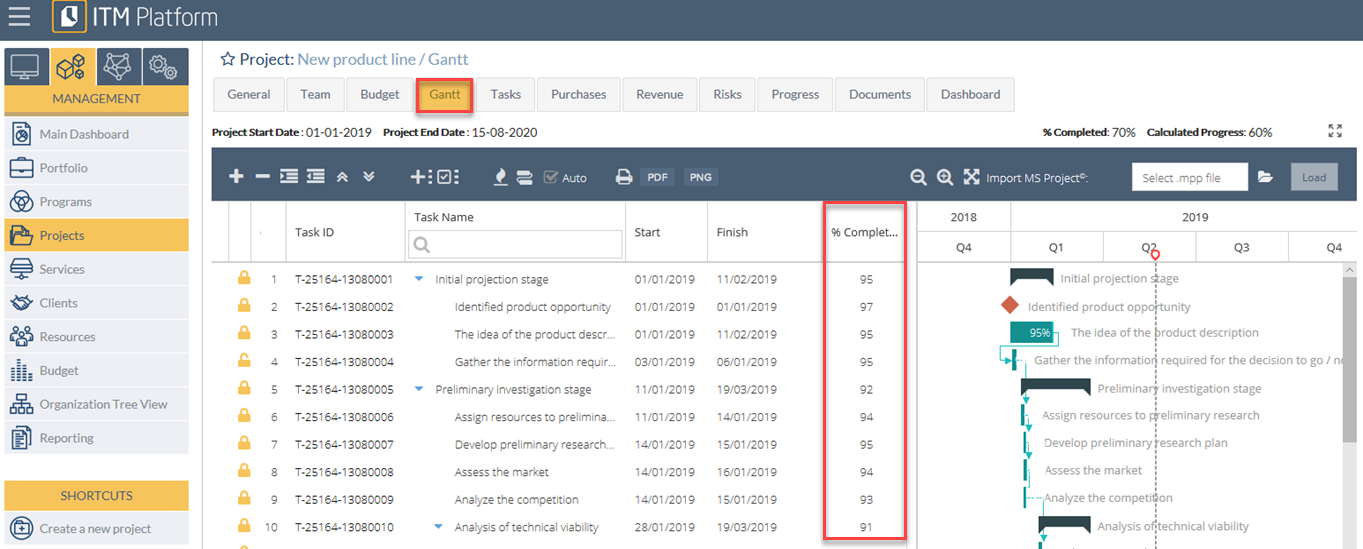
When saving, a progress report will automatically be generated for each task. Progress of summary tasks will be updated following the calculated progress method configured in the project. If the option is checked, a project progress report will also be created.

Progress Report section
In the Progress section of the project, you will have access to the following metrics:
- % Completed: represents the progress created by the project manager, either manually or automatically.
- % Expected today: represents the progress that the project should have reached today, based on its duration.
- Baseline – % expected: represents the progress you would expect from the active baseline.
If you did not set a baseline, this data will not be reflected in any of the charts. 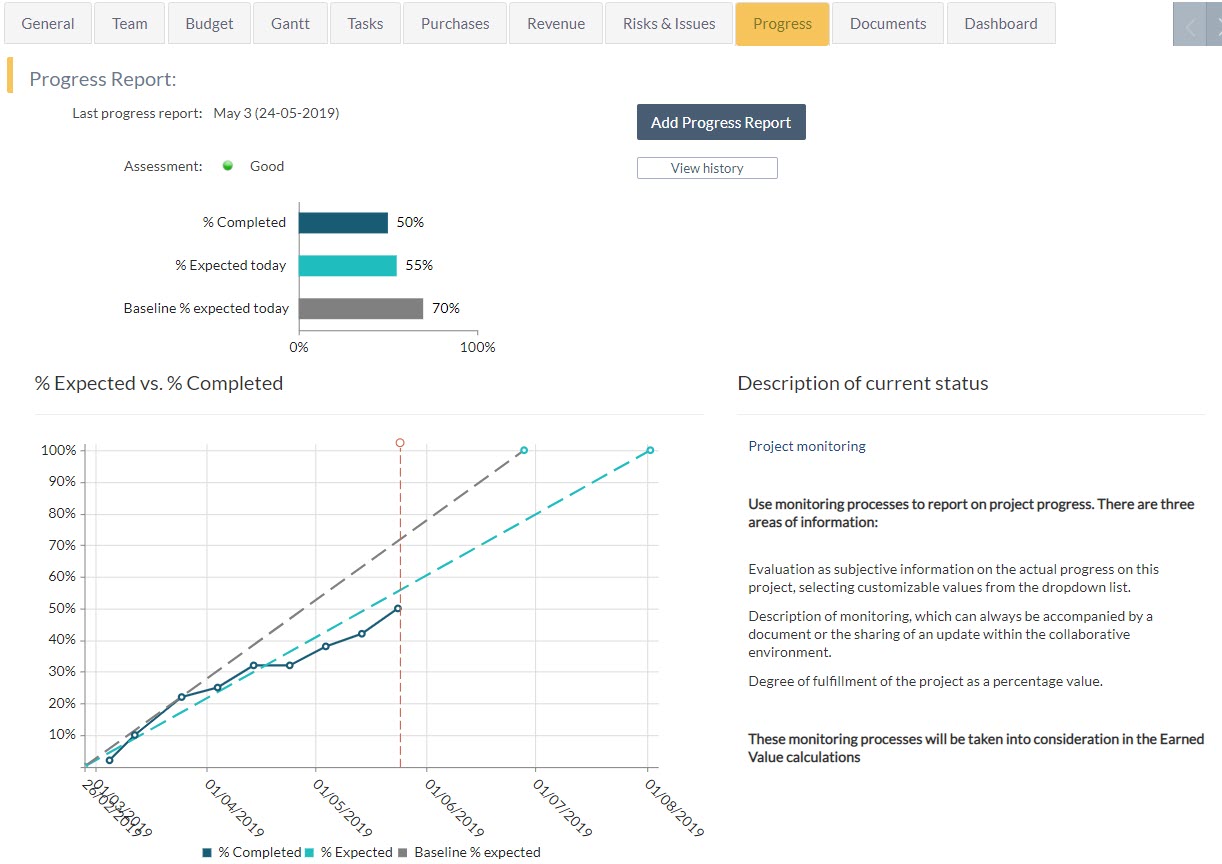
In this section you will also find:
- “Add a progress report” button, the option to report progress manually
- “View History” button, that allows you to access previous progress reports
- “Description of current status” section shows last report description
- The “Earned Value” button will show you the project’s Earned value analysis