Resources section
The Resources section shows how much work people have across all projects and services and how that compares with their capacity. Open it from MANAGEMENT > Resources. It has three tabs:
- Analysis: estimated effort, actual time and capacity over several days, weeks, months or quarters, or as totals for a date range, organized by people, components or tasks. See Resource analysis.
- Weekly: one week, day by day, for each person and each project or service they work on. See Weekly workload.
- Planning: demand by professional category against allocated capacity, where hours can be allocated to people. See Resource planning.
Analysis and Weekly are read-only. To assign people to tasks or change their estimated effort, open the project's Team tab from the component's details. See Project team management.
Resources opens the tab you used last in this browser. The first time, it opens Analysis.
Key concepts
- Estimated: the estimated effort assigned to a person on tasks and activities, distributed over the working days of each task. See Effort management.
- Actual: the time the person has reported in the timesheet.
- Capacity: the hours the person can work, from their working hours and calendar. Weekends, company holidays and the person's vacation days have no capacity.
- Component: a project or a service.
- Other work: estimated effort of the listed people on projects and services outside the current view. It counts in their load but is never named.
- Overallocation: on at least one day, a person's estimated effort across all projects and services exceeds their capacity for that day.
Who can open Resources
- Roles based on a Full Access license can open the three tabs, according to the role's permissions.
- Roles based on a Project Manager license can open Analysis and Weekly, but never Planning. They see the teams of the projects and services they manage, as described in the next section.
For Project Manager roles, the access is set in the role's manager permissions. Go to ORGANIZATION > USER MANAGEMENT > Role Definition, open the role and click Set Manager permissions. The Resources row opens the section, and the Analysis and Weekly rows below it open each tab. A role needs Resources and at least one of the two tabs; clearing Resources removes the whole section.
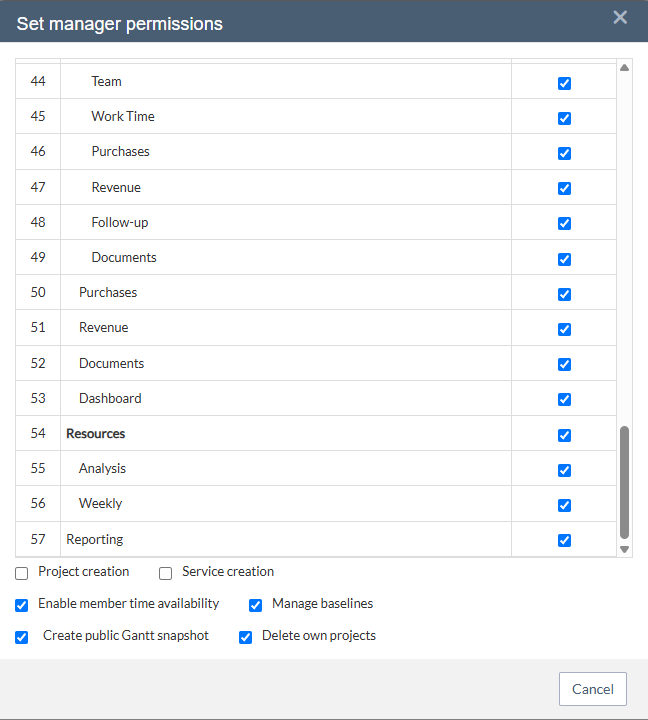
Roles based on a Project Manager license have the three permissions granted by default. Clear them in the roles that should not see Resources. The main menu reflects a change the next time the user logs in, while access to the tabs is checked on every request, so a removed permission takes effect at once. See Licenses and roles.
Projects you manage and Other work
Users with a Project Manager license always see the Resources tabs limited to the projects and services they manage:
- The people listed are the members of those teams.
- Their work on the projects and services you manage appears by name, with estimated and actual time.
- Their work anywhere else appears in one Other work row per person, with estimated effort only. It counts in their load, in Estimated / capacity and in the overallocation signal, so you can see whether a team member has room for more work. The names of other projects, their tasks and their actual time are not shown.
A note above the grid reminds you of this scope: "Showing the teams of the projects you manage. Work on other projects counts as Other work, without names."
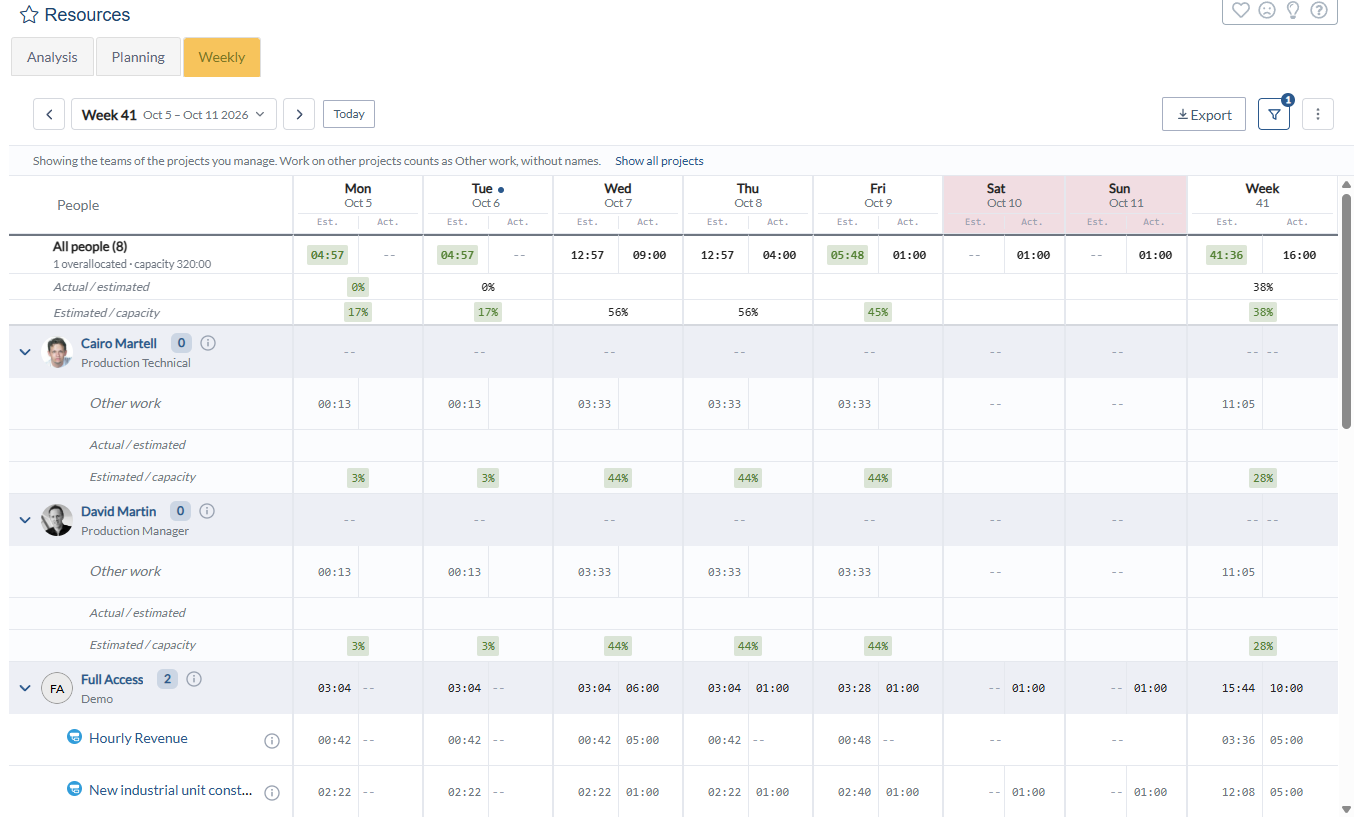
Full Access users see every project and service by default. They can narrow a tab to the components they manage with Only the projects I manage in the Weekly filters or Only the components I manage in the Analysis filters, and return to the full view with Show all projects or Show all components in the note.
In Analysis, when a component pivot is empty because the projects you manage have no work in the period but your team has work elsewhere, the message offers Show people, which switches to the people pivot.
Reading the numbers
Analysis and Weekly use the same conventions:
- Hours are shown as
hh:mm. A value of zero, or a value that does not exist yet, is shown as--. - Each period shows the pair Est. and Act.; in the people view of Analysis, Cap. follows.
- Actual / estimated divides actual time by estimated effort on the components in view. Estimated / capacity divides all of the person's estimated effort, Other work included, by their capacity. When the divisor is zero the cell stays empty.
- Numbers outside the thresholds are colored: red when the value is over its reference by the Over percentage or more, green when it is under by the Under percentage or more. Estimated is compared with capacity, and actual with estimated. Set both percentages, or turn them off, in the three-dot menu of each tab.
- A day or period that has not finished carries no color for actual time: actual for today is shown without a verdict, and future days and periods show
--. - Day headings of weekends and company holidays are tinted. A company holiday also has an outline and is named in the line above the grid.
- An umbrella on a day marks the person's vacation. Hover it to see the date and any work still estimated that day.
- An orange triangle next to a name marks an overallocated person. Hover it for the details.
Details panels
Click the information icon next to a name to see more:
- Person: position and the person's capacity, estimated effort, actual time and ratios for the period in view, with See day by day. In Weekly it opens a chart of the person's seven days; in Analysis it opens the Weekly tab.
- Project or service: type and your role, with Open project or Open service. When you manage it, Open its team opens its Team tab, where you can change the assignments.
Exporting to Excel
Export downloads an Excel file (.xlsx) of the current view:
- Rows follow the grid, with people and their components as outline levels that you can collapse in Excel. The total for all people or all components is on top.
- Hours are written as decimal numbers and ratios as percentages, so the columns can be added up.
- A second sheet, Filters, records the period, the scope, the filters and the time the file was generated.
The file contains only what you can see on screen. Under the projects-you-manage scope, Other work is exported as a total, without names.
FAQ
Why can't a project manager see the Planning tab? Planning is available to Full Access roles only. Project Manager roles can open Analysis and Weekly when their manager permissions include them.
Why does a person show Other work but no project names? Other work is their estimated effort on projects and services outside your view. It counts in their load so that capacity figures are correct, but the projects are not named.
I removed a permission, but the user still sees Resources in the menu. The menu is rebuilt at the next login. The tabs themselves already refuse access.
Why does Resources open on Weekly instead of Analysis? Resources reopens the tab you used last in this browser. Click Analysis to switch; next time it opens there.
Why are some numbers red or green? They are beyond the Over or Under threshold set in the three-dot menu. Estimated is compared with capacity and actual with estimated.